


Most people use the words “modem” and “router” like they mean the same thing. They don’t. And understanding the difference can save you money and fix problems you didn’t know you had.
The Two Jobs
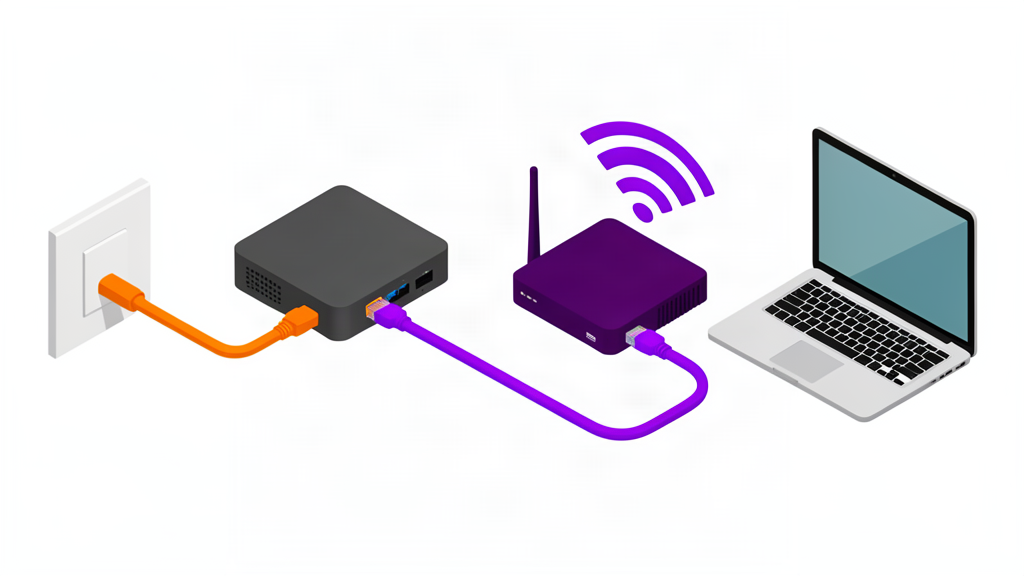
Your internet comes into your house through a cable, phone line, or fibre optic wire. That signal is a raw data stream - your computer can’t understand it directly. A modem converts that raw signal into something your devices can use.
A router takes that internet connection and shares it with all your devices. It creates your Wi-Fi network, assigns addresses to everything that connects, and makes sure the data goes to the right device.
Two completely different jobs. Two separate boxes?
Why You Only See One Box
Your internet service provider (ISP) gives you a combined unit called a gateway. It’s a modem and a router in one box. The modem part connects to the internet line. The router part creates your Wi-Fi.
The problem: the router part of these combined boxes is usually poor. The Wi-Fi is weak, the controls are limited, and you can’t upgrade one part without replacing the whole thing. Your ISP has no incentive to put a good router in that box - they want to give you the cheapest thing that works.
Bridge Mode - the Fix
Bridge mode is a setting that turns off the router part of your ISP box. Your ISP box becomes just a modem, and you connect your own router to handle the Wi-Fi and device management.
This is almost always better because:
- Your router has better Wi-Fi hardware
- Your router has more settings you can control (separate networks, guest access, parental controls)
- You can upgrade your router without touching the ISP box
- When you change ISPs, you keep your router and all of its settings
How to set it up: Log into your ISP box (usually at 192.168.1.1 or 192.168.0.1 - check the sticker on the box). Look for “bridge mode,” “modem mode,” or “IP passthrough.” Turn it on. If you can’t find it, call your ISP and ask them to do it. Some ISPs restrict this setting - if yours does, you may be stuck with their box.
The Rent vs Buy Decision
Your ISP charges $10 to $15 per month to rent their modem/router combo. That’s $120 to $180 per year. After three years, you’ve paid $360 to $540 - enough to buy a top-tier modem twice.
A good modem costs $50 to $100 and lasts five years or more. Do the math.
Before you buy: Check your ISP’s list of compatible modems. Most ISPs have a page on their website. Buy from that list. Not every modem works with every ISP, and some will tell you they “don’t support” customer-owned modems even when they technically work.
The exception: If your ISP requires a technician visit to install a customer-owned modem - and some do, charging $100+ for the visit - the savings disappear. In that case, keep renting until you can switch ISPs.
One More Thing - the Connection Type
The type of cable coming into your house determines what kind of modem you need:
- Cable internet (Coax) - uses a cable modem. The round screw-on connector, like your TV uses.
- DSL (Phone line) - uses a DSL modem. The smaller rectangular plug, like an old phone cord.
- Fibre - uses an ONT (optical network terminal). Usually installed by the ISP. You don’t buy this yourself.
If you’re not sure, look at the back of your ISP box. The cable that comes in from the wall will tell you.
What to Do Now
- Check whether your ISP charges modem rent (look at your bill)
- If yes, find your ISP’s compatible modem list
- Buy a modem from that list ($50-$100)
- Enable bridge mode on your new modem
- Plug your own router into it
- The rental fee disappears from your next bill
Read this next: The 5 Router Settings You Should Change Right Now - once you own your modem, you need to set up the router properly. And How to Buy a Router for when it’s time to upgrade.