


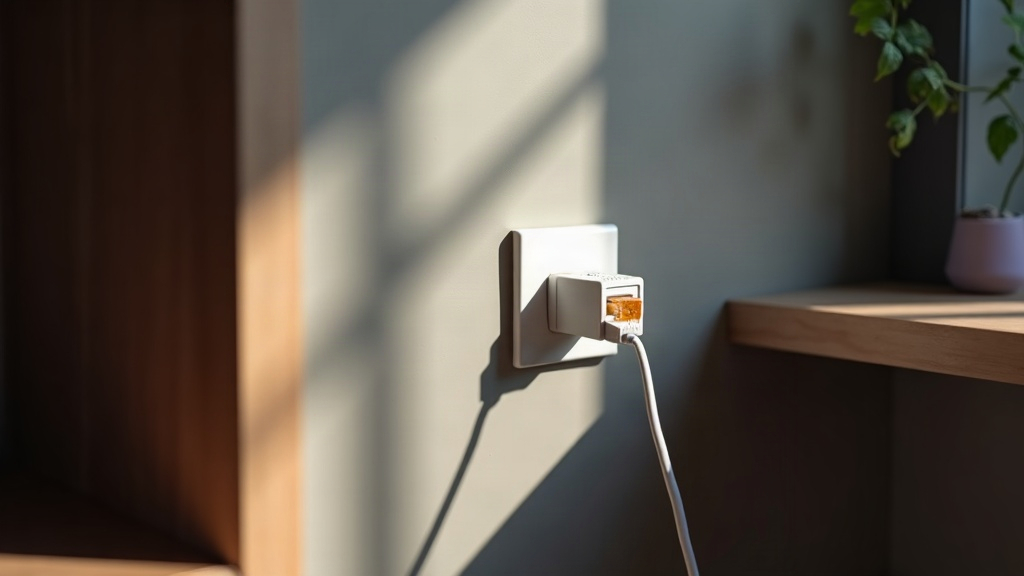
There is a room in your house where Wi-Fi gives up. The back bedroom, the garage, the spare room you now work in. You have moved the router, changed the channel, and tried an extender and somehow made everything worse. Running an Ethernet cable would fix it, but that means drilling holes or stapling a wire along the baseboard.
If your house has ever had cable television, the fix may already be behind a wall plate.
What MoCA Is
MoCA stands for Multimedia over Coax Alliance. It is a standard rather than a brand, and it has been built into consumer networking gear for years.
The hardware is unglamorous. Each adapter is a small box with two sockets: one coax, one Ethernet. You run an Ethernet cable from your router into the first adapter and screw its coax side onto a wall outlet. In the far room, the second adapter does the same in reverse, and your device is then plugs into its Ethernet port.
That is the whole installation. No configuration, no app, and usually nothing to pair.
If your cable modem already speaks MoCA, you only need one adapter, because the modem is already the near end. Cable providers in the United States increasingly ship modems with it switched on. Not all of them do, and it is worth checking before you buy two. (If the vocabulary here is unfamiliar, start with what Ethernet actually is.)
Why Coax Beats Powerline
Powerline adapters are the version most people find first. They use your home’s electrical wiring, which sounds like magic and mostly works, with one recurring problem: your mains wiring was never a network cable. It is a noisy shared circuit, and it gets noisier when the fridge compressor starts, when a cheap LED driver switches, or when a vacuum cleaner runs in the next room.
Coax does not have that problem. It is a shielded cable installed for one purpose, carrying high-frequency signals, and nothing else in the house uses it. Coax that has sat in a wall for twenty years is still coaxial cable.
The practical difference: powerline gives you whatever your electrical noise happens to allow. MoCA gives you a consistent number, and it stays consistent.
The Prerequisite: One Connected System
MoCA only works if the coax outlets you want to use are part of the same coax network. ScreenBeam states it plainly in its own product notes: coax outlets and coaxial wiring must all be part of the same coax system.
In practice that means if the coax to the back bedroom was disconnected at the splitter years ago, or that run was never joined up in the first place, the adapters will not find each other.
Old splitters are the other common cause. Coax splitters are rated by frequency range, and a splitter installed for cable TV decades ago may not pass the 1125 to 1675 MHz band that MoCA uses. Replace it with a MoCA-rated splitter. Reviewers of this gear mention it constantly, and it is the cheapest thing to try.
When MoCA Will Not Work At All
This is where the enthusiastic write-ups stop short, and it matters, because the homes most likely to be full of coax are exactly the ones where MoCA fails.
Satellite TV. If you have DirecTV or Dish, MoCA is not compatible. TRENDnet states flatly that its adapters are not compatible with DirecTV, DISH Network, AT&T U-Verse, or other non-MoCA compliant subscription services. goCoax warns that MoCA’s frequency band can overlap with satellite TV and advises checking before ordering. Satellite systems use their own frequencies and their own multiswitch, and the two do not share.
AT&T. AT&T’s internet and U-verse services use the coax in ways that consumer MoCA adapters do not speak.
A DOCSIS 3.1 cable modem. ScreenBeam warns that DOCSIS 3.1 modems might conflict through frequency overlap and cause random disconnects, and advises checking with your provider. Intermittent drops that look like a failing adapter can be this instead.
No coax in the room you need. Obvious, and the commonest reason MoCA is not an option. Plenty of houses have a coax outlet in the living room and nowhere else.
So the check is quick: cable TV or cable internet means MoCA is a strong candidate; satellite means it is not.
The Filter Is Not Optional
Where the cable enters your house, before it reaches your modem, MoCA gear should have a small in-line filter.
The reason is not performance. The coaxial cable leaving your house connects to a shared cable plant. Without a filter, your MoCA signal can travel out of the house onto that plant, where it is visible to neighbors on the same node, and their MoCA signals can arrive in yours. A point of entry filter blocks the MoCA band at the boundary in both directions.
Filters are the cheapest part of the setup - a two-pack runs around $25.
If you have no cable service at all and the coax in your walls is dead wiring from a previous owner, there is nothing outside to filter and you can skip this. If cable internet arrives at your house, fit one.
Speed and Latency
Speed. MoCA 2.5 is specified for up to 2.5Gbps across bonded channels, and how much you actually get depends on the adapter’s Ethernet port as much as on the coax. Several MoCA 2.5 adapters, including TRENDnet’s TMO-312C and ScreenBeam’s ECB6250, have Gigabit Ethernet ports, which caps them at around 1Gbps no matter what the coax is doing. If you want more than that, buy an adapter with a 2.5GbE port.
Latency. MoCA is not instant. ScreenBeam’s own specification for the ECB6250 lists a link delay of 3.6 to 6.3 milliseconds. That is negligible for streaming, browsing, and video calls, and roughly comparable to good Wi-Fi. It is not the lowest-latency path, though. A direct Ethernet run still wins, so if you are chasing competition-grade latency, run the cable.
Nodes. The standard supports up to 16 MoCA devices on one coax network, which is more than a house needs.
What It Costs
| Item | Typical US price |
|---|---|
| MoCA 2.5 adapter, single, 2.5GbE port (goCoax MA2500D) | $60-75 |
| MoCA 2.5 adapter, single, 1GbE port (TRENDnet TMO-312C) | around $70 |
| MoCA 2.5 adapters, two-pack, 1GbE ports (ScreenBeam ECB6250) | around $135 |
| Point of entry filter, two-pack | around $25 |
A two-adapter setup lands between roughly $120 and $150. A single adapter plus a modem that already speaks MoCA is about half that.
For comparison, our own wired versus mesh piece puts DIY Ethernet materials at $15-50 per room, before you count the drilling, the cable clips, and an afternoon. MoCA costs more in hardware and nothing in labor. If you would rather run the cable properly, that is still the better answer, and running it yourself is a weekend, not a trade qualification.
Prices move, and sales move faster. Treat these as the shape of the spend rather than a quote.
How to Check Your House in Five Minutes
- Find your coax outlets. Look for round screw-on wall plates. Count how many rooms have one.
- Find the splitter. Somewhere near where the cable enters, there is usually a splitter dividing the signal. See what is connected to it, and whether your target room’s cable is among them.
- Check your modem. Look up the model. If it supports MoCA, you need one adapter rather than two.
- Check your service type. Cable or fiber, you are fine. Satellite or AT&T, stop here.
What to Do Now
- Work out whether your internet arrives over cable, fiber, satellite, or AT&T. Only the first two are viable.
- Count the coax outlets in the rooms you actually care about.
- Check whether your modem already supports MoCA.
- Buy from a retailer with a returns policy. If the outlets turn out not to be connected, you want to send the adapters back.
- Fit the point of entry filter first, then the adapters.
- If it does not work, replace the old splitter with a MoCA-rated one before concluding anything.
How we wrote this
We have not tested MoCA in your walls, and no article can, because whether it works depends on the coax your particular house happens to have. The compatibility warnings above come from the manufacturers’ own documentation, and the prices are what retailers were asking when we looked. Treat the specifications as solid and the wiring as something only your house can answer.
Read this next: Wi-Fi Extenders vs Mesh vs Powerline - where coax fits against the other three options, side by side.
Want the full guide? We’re building a complete home networking book. Sign up for the free guide.